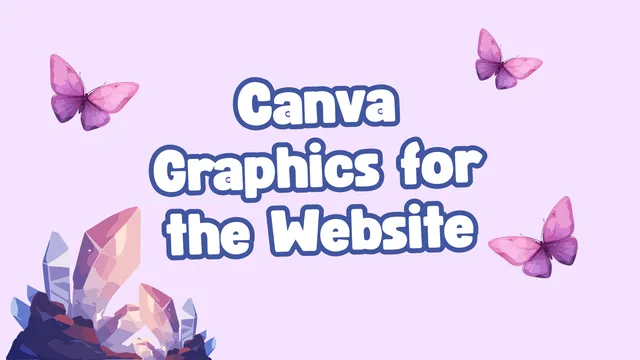
Need an eye-catching graphic design to use as a featured image for your website page or post?
Canva can be a great tool for creating engaging graphics for your featured images. Featured images are used as thumbnails in the news feed, in search results, and by default at the top of your articles.
In order to make an ideal featured image in Canva, here are a few tips to keep in mind:
- Similar to your digital signs, start with a "Presentation" format for your design. Canva presentation slides are in a 1920 by 1080 pixel size by default, which is a great ratio for your featured image.
- Keep the text simple and centered. If you are creating a featured image graphic, leave the details off the image and use minimal text. A title is usually enough. Make sure the text is in the center of your image so that as it adjusts to different screens or positions in the news feed, the edges of the text won't be cropped off.
- Keep in mind that as your image flows through the news feed, it will start as more of a rectangular shape and move to more of a square shape. Make sure there isn't anything too important near the edges, as it may get cropped.
- Remember accessibility principles like color contrast, and ensure any text in your Canva graphics is included in plain text in your page or post.
- If you design flyers in Canva, make sure to add those in the content of your page or post, rather than using flyers as your featured images. The text will be too small to read, and portrait images will get cropped.
- Apply extension brand: Remember, you can click on the brand icon in Canva and select N.C. Cooperative Extension, NC State Extension, or 4-H brands to apply colors and logos to your design.