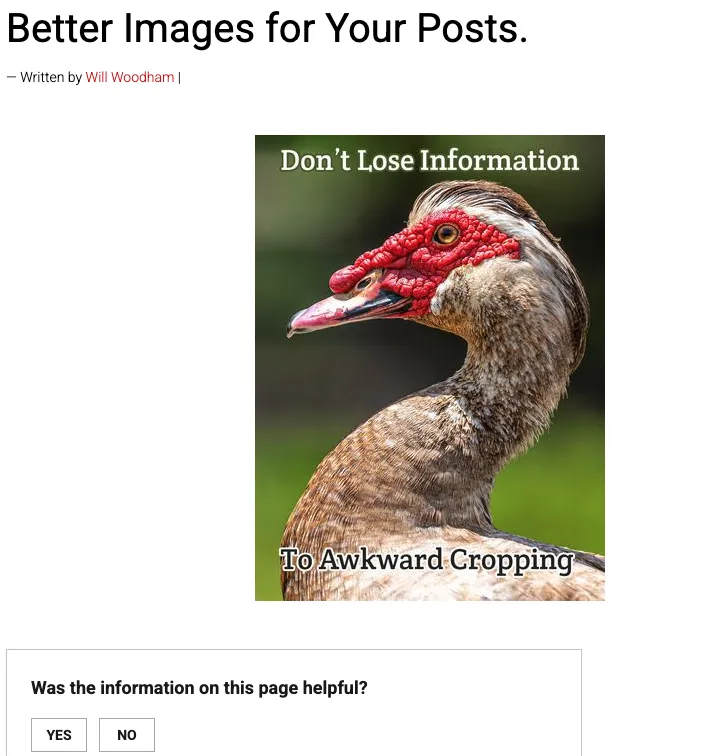
Does your featured image not quite crop correctly?
The correct way to fix the issue:
You should always design your featured image to fit our featured image. This not only ensures it looks good on your page, but also looks good as a thumbnail. Our general recommendation is a minimum of 1200px by 900px. This will give you a landscape image with good dimensions for both desktop and mobile.
However, there is a quick way to fix the issue.
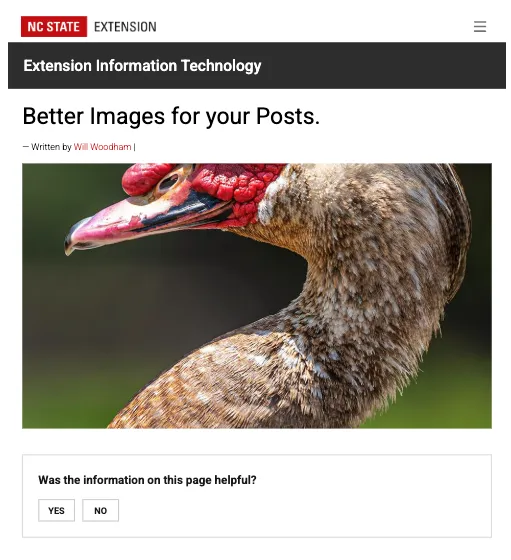
Sometimes a featured image doesn't always translate well to our featured image block in the post. Just like the image below, you may be missing key information, or the image itself may just not look quite like you would like it.
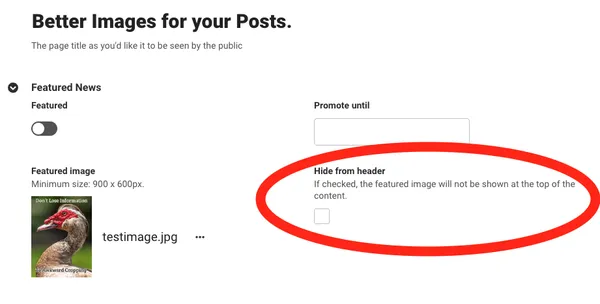
First, we will hide the featured image. To the right of the Featured Image Selection in your news post is a checkbox. This checkbox will hide the featured image on the post when checked. For reference, that checkbox is circled below. The thumbnail the post uses will still be the featured image, but the image will no longer be at the top of your post's page.
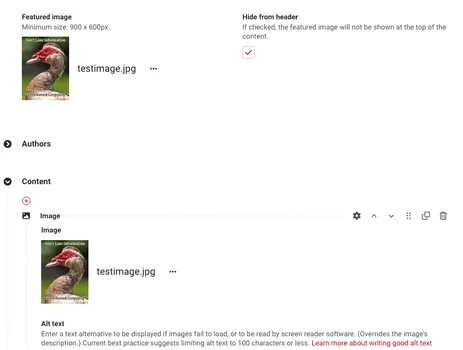
Since we no longer have an image on the page, we need to add it back. At the top of your content section, add your image back using the image content block.
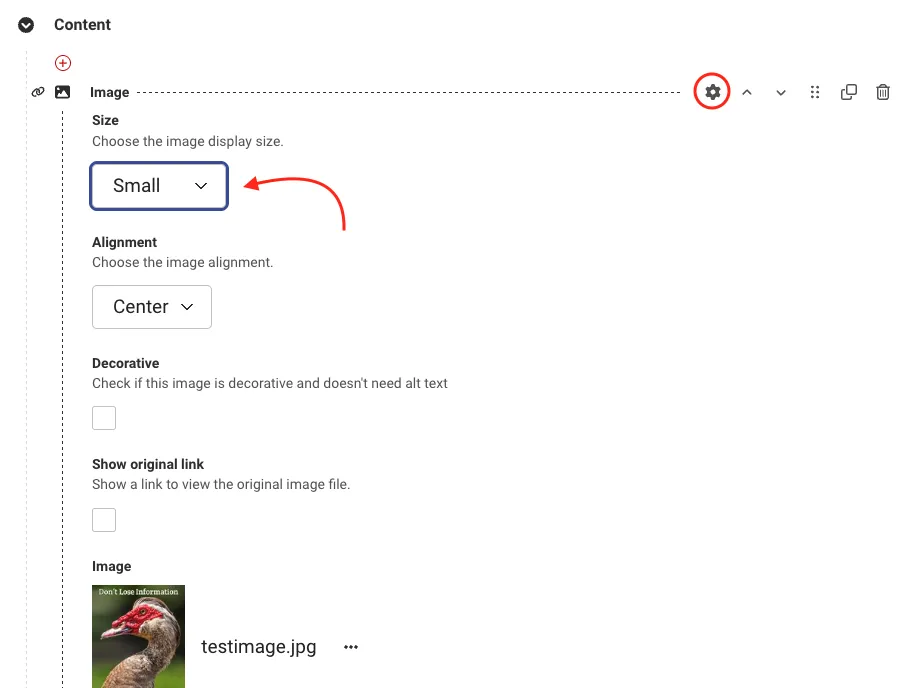
Finally, if your image is still a bit oddly sized (usually it's too big), you can resize the image using the advanced image options. For a featured image, I have found that "Small" or "Medium" is closer to what I like.
Your Outcome
Finally, you have a post with an approriately cropped and sized image.