Do you ever feel like an element in your Canva project doesn't quite match the style of the design as a whole?
Canva recently rolled out a new AI-assisted feature that allows you to copy and paste the style of one element and apply it to another.
Do you ever feel like an element in your Canva project doesn't quite match the style of the design as a whole?
Canva recently rolled out a new AI-assisted feature that allows you to copy and paste the style of one element and apply it to another.
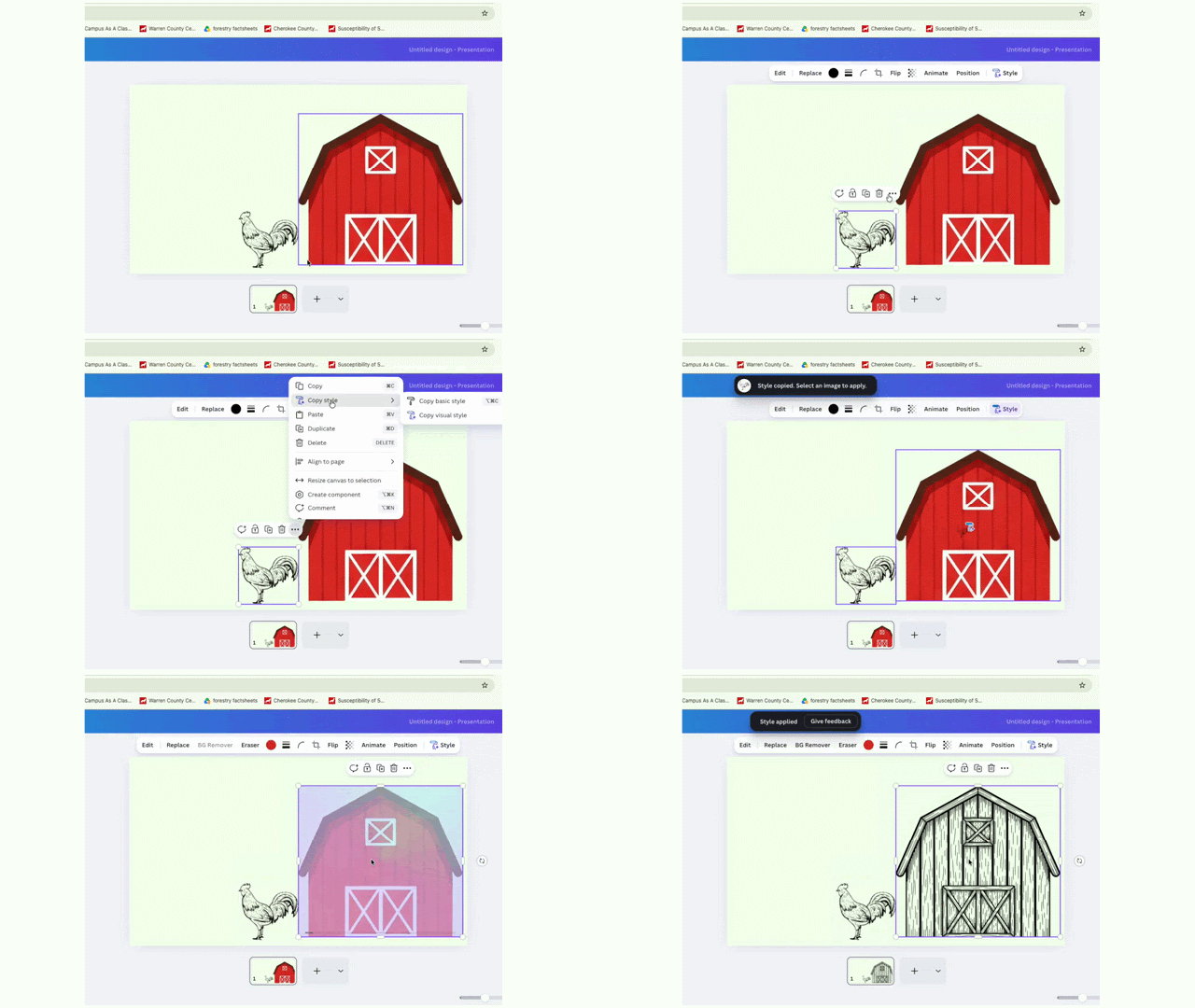
Tip: You can also try Style Match to automatically align the visual style of graphic elements across your whole layout.
NC State Extension offers limited licenses to Extension employees who would like to use Canva Enterprise.