Fall is a great time to refresh and tidy up your website content, and one important piece to examine is your custom menu!
Things to Check For:
- Are all my menu links working and directing to the correct webpage? Quickly click through your menu items. Sometimes, links still function and are missed by the QA tool , but the content of the page may have changed or been redirected. It's best to check manually on occasion!
- Do I have any outdated menu links? If you have a link highlighting an event that has already passed, update the page with generic information or remove it from your menu for now.
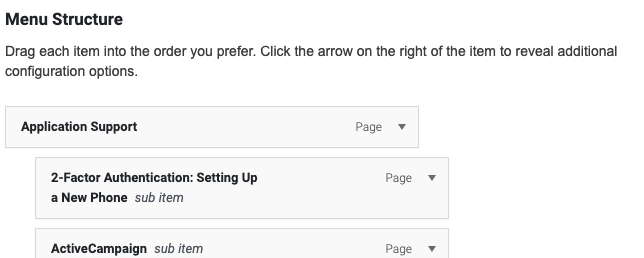
- Does my hierarchy make sense? Our menus allow for several levels of nested items. Make sure that your content is organized logically. Also, consider if everything needs to be included in the menu! Links can also be listed within pages to direct users to content and resources, even if they are not in the menu structure. Too many menu items may be challenging to navigate.
How To Adjust Your Menu:
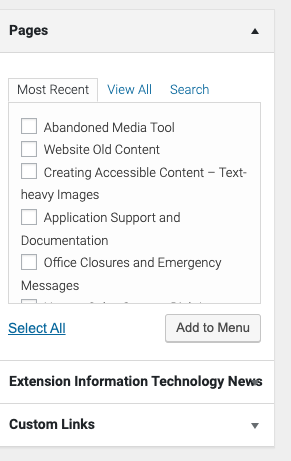
- From your website dashboard, hover over "Site Settings" and select "Secondary Menu." Then, use the options in the Pages box to browse or search for pages to add to the menu. You can also link to outside pages using the "Custom Links" option.
If you need any assistance with editing or setting up a custom menu, reach out to us at eithelpdesk@ncsu.edu