Sharing a Campaign

(Updated: March 20, 2024, 9:10 a.m.)

Creating the perfect campaign to send to your contacts in ActiveCampaign takes time. You want to ensure you reach as many of your target audience as possible. After you send your campaign to the contacts already on your ActiveCampaign list, you may decide to share that campaign on social media to bring in more participants or post it on your website to create an archive of campaigns and information.

Sharing your campaign is easy if you follow the instructions below!

 

The ActiveCampaign sidebar with the Reports option highlighted by a red circle.
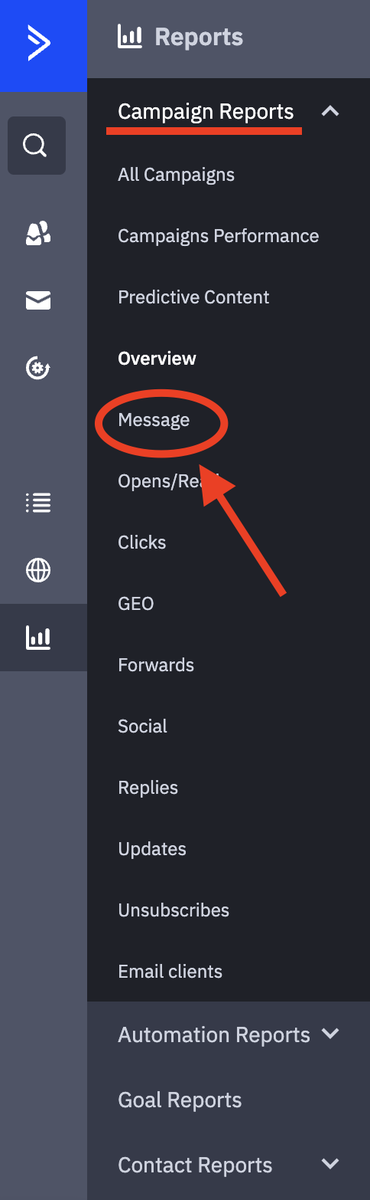
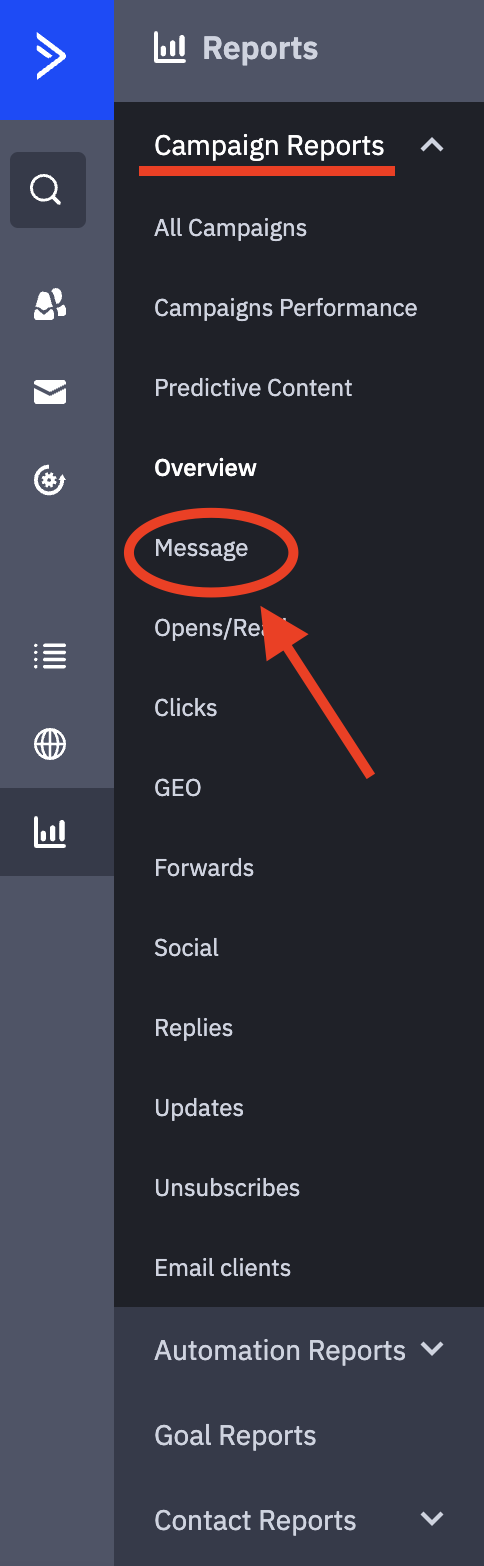
The Campaign Reports submenu of the reports menu. There are numerous options, but the "Message" option is highlighted and circled in red indicating that option.
A row of social media icons along with a globe icon indicating the web. The Globe icon is highlighted and circled in red.
  1. Sign in to ActiveCampaign.
  2. Click on Reports in the left-hand menu.
  3. Select the campaign you wish to share.
  4. Click on Message under the Campaign Reports section.
  5. Click the globe icon in the top right corner. When you hover over it, it will say "View Web Copy."
  6. Copy the URL at the top of the newly opened tab. You can now paste it into a social media post, create a link on your website to create an archive listing, and more.