Using this function, you can manage your incoming mail using filters to automatically send to an existing label, archive, delete, mark as important, or forward a message.
How to Create an Inbox Filter in Gmail
(Updated: Feb. 3, 2021, 4 a.m.)

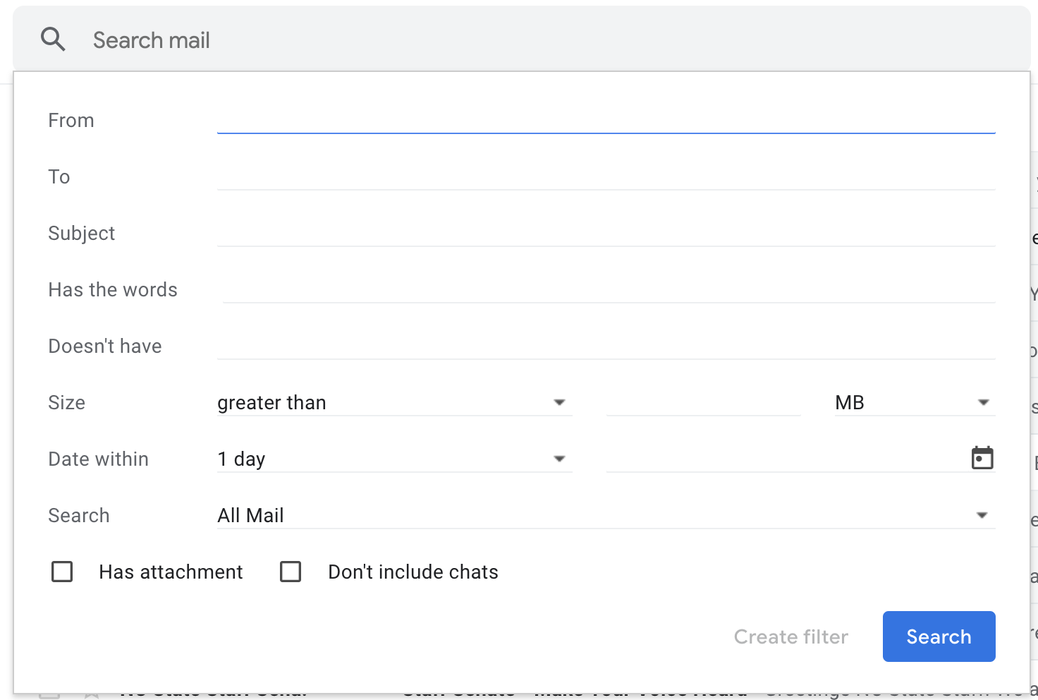
- Open your NC State University email Inbox.
- In the Search mail box at the top, click the Down arrow.
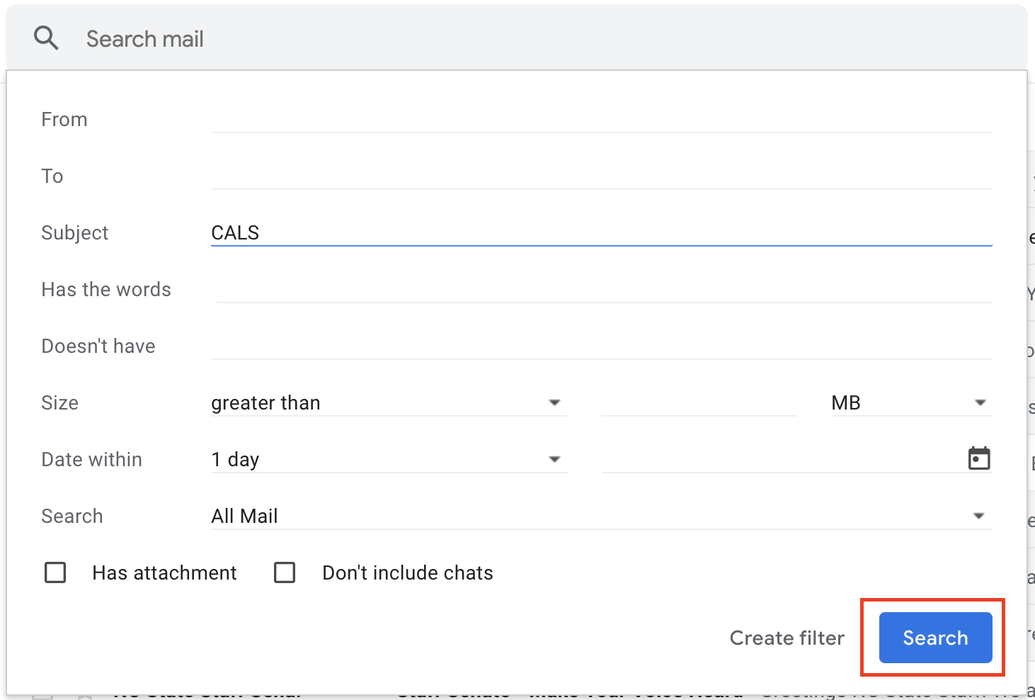
- Enter your search criteria. If you want to check that your search worked correctly, see what emails show up by clicking Search.
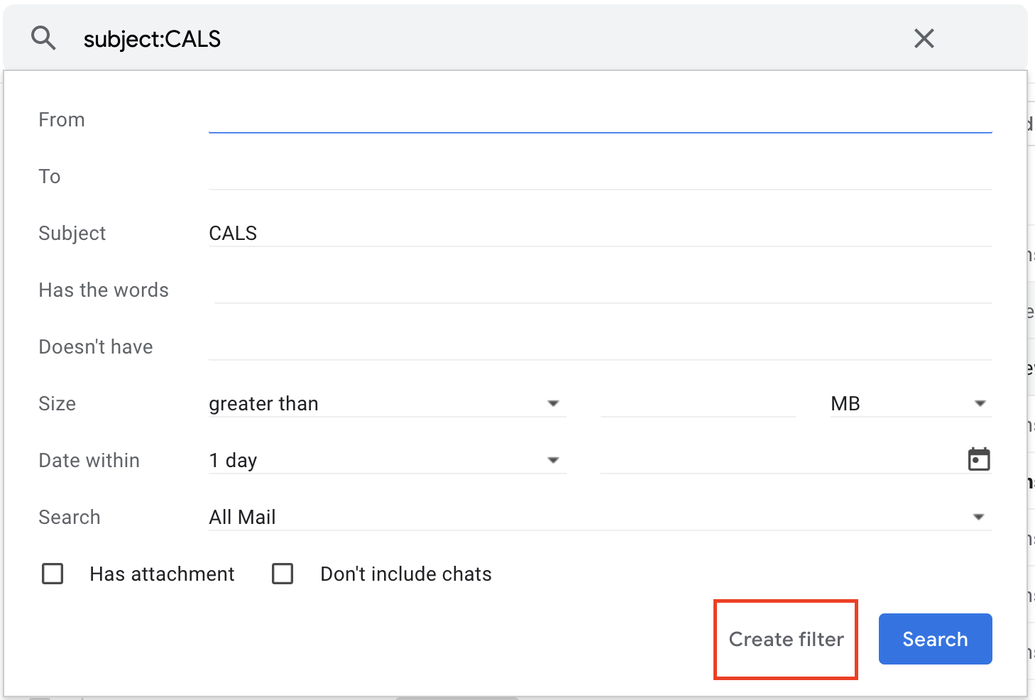
- Click the Down arrow again and at the bottom of the Search window, click Create filter.
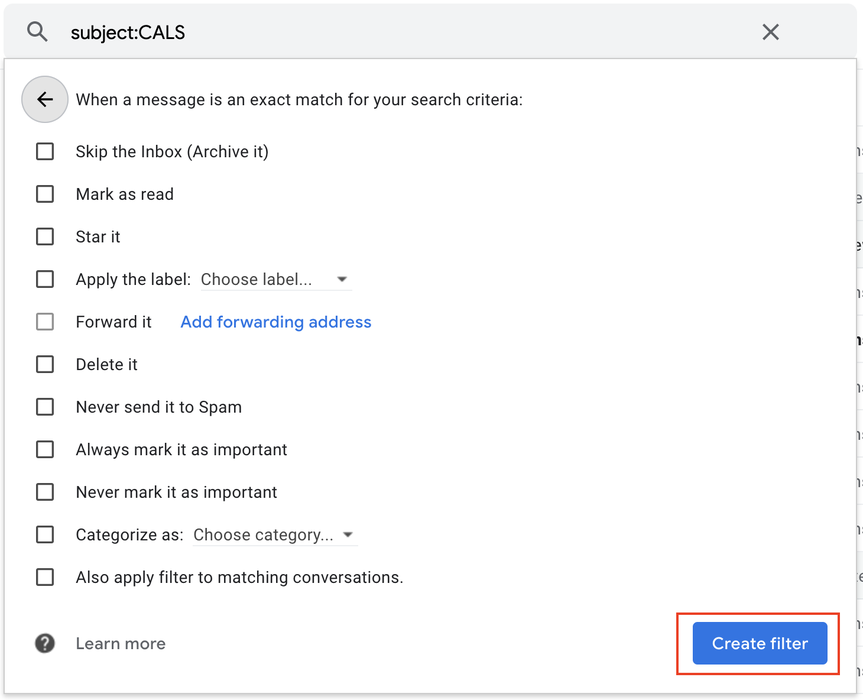
- Choose what you’d like the filter to do, then Create filter.
Note: When you create a filter to forward messages, only new messages will be affected. Additionally, when someone replies to a message you've filtered, the reply will only be filtered if it meets the same search criteria.
For assistance with other GSuite applications including Google Docs, Google Sheets, Google Forms, and Google Slides, see our G Suite Help Documents page.
If you have any questions about anything G Suite or Google app-related, you can reach Allison, our IT Training and Support Specialist, at Allison_A_Jones@ncsu.edu.