When Extension agents collaborate across county lines on regional workshops, multi-county 4-H camps, or statewide educational series, version control often falls apart. Emailing drafts back and forth, losing high-res logos, and accidentally printing flyers with outdated event details waste valuable program time.
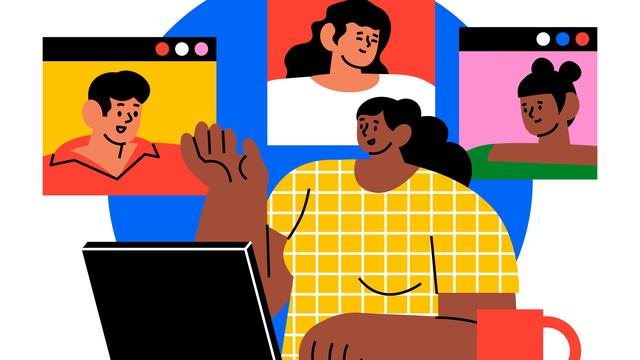
By setting up Canva shared team folders and using real-time co-designing tools, your team can eliminate file clutter and work in a single, live workspace. Here is how to streamline your multi-county collaboration today.
Instead of letting graphics clutter individual accounts, create shared folders for joint initiatives or district teams. A clean structure keeps assets accessible to everyone on the project:
- Joint Campaign Folders: Create dedicated folders for specific multi-county events (e.g., 2026_TriCounty_Pond_Management). Store shared flyers, presentation decks, and social graphics here so all committee members have immediate access.
- Centralized Brand Assets: While we maintain a folder containing official university logos and mandatory non-discrimination statements, it's a great idea to add county seals and approved photography to your shared folder(s) so no one has to search for high-resolution graphics.
Canva offers several features that make co-authoring graphics as easy as editing a shared document:
- Live Multi-User Editing: Multiple agents can edit the same graphic or presentation deck simultaneously. A county agent can update registration details on slide 2 while a state specialist updates research data on slide 5.
- In-Design @Mentions: Skip lengthy email threads. Highlight a text block or graphic directly on the canvas, leave a comment, and tag a teammate (e.g., @Sarah - can you double-check this recommended nitrogen application rate?). Sarah receives a direct link to review and edit.
- Version History: If an element gets accidentally deleted or formatted incorrectly, Canva automatically tracks edit history so you can restore a previous version with a single click.