Proposals and award reports to the NC Sweetpotato Commission require a video recording of a presentation explaining your proposal or your report. You will need to upload these videos using a Google Form link once you have submitted your proposal. This page gives basic instructions on how to create and upload these videos.
We walk you through recording your PowerPoint or Google Slides presentation, saving it as an MP4 video file, and submitting it through our online form. Depending on your operating system or version of PowerPoint, your specific steps may vary, but the process will be similar.
Before you start, you'll need:
- A finished presentation in PowerPoint or Google Slides
- A computer with a microphone (the built-in one works fine). A camera is optional.
- A quiet space
Step 1: Choose how you want to appear
- Video + slides: Your slides appear with a small video of you overlaid on the presentation.
- Voice-over only: Your slides appear with your voice narrating. Your camera stays off.
You will pick between these options when you start recording in Step 3.
Step 2: Get ready to record
- Write a script. Put it in the speaker notes of each slide so you can read from them as you record.
- Set up your space. Pick a quiet room, close other apps, and silence notifications. If you're using your camera, face a window or light source so your face is well lit.
- Do a short test. Record one slide, play it back, and make sure you can hear yourself clearly.
Step 3: Record your presentation
If you're using Google Slides
- Open your presentation in Chrome. Recording does not work in every browser.
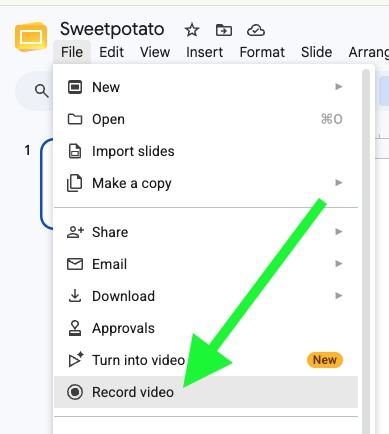
- Go to File, then Record a video.
- Turn your camera on or off, and make sure your microphone is on. Allow the browser to use them if it asks.
- Select the red Record button. Wait for the countdown, then start speaking.
- Move through your slides as you speak.
- When you're done, pause and select Save to Drive.
- Export the Video as an MP4
If you're using PowerPoint
- Open your presentation in PowerPoint (not a web browser version).
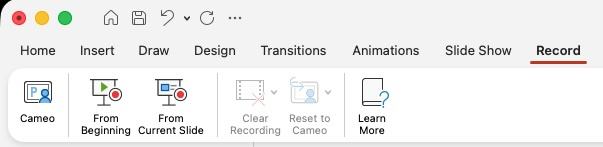
- Find the Record button. Depending on your version, it is in the Record tab or the Slide Show tab. Select Record Slide Show.
- Choose From Beginning to start at the first slide.
- Turn your camera on or off, and make sure the correct microphone is selected. Allow PowerPoint to use your camera and microphone if it asks.
- Select the red Record button. Wait for the short countdown, then start speaking.
- Move to the next slide when you're ready. Let transitions finish before you speak, because narration does not record during a transition.
- When you reach the end, select Stop or End Show.
- Play it back to check it. To redo a slide, select Retake Recording (or clear the recording for that slide and record it again).
- Export the Video as an MP4
Step 4: Save your recording as an MP4 file
The submission form only accepts MP4 files.
Google Slides
- Your recording is saved in your Google Drive.
- Find the video in your drive. Open its More menu (three dots) and select Download.
- Save the file to a place you can find it, such as your Downloads or Desktop folder.
PowerPoint
- Select File, then Export. (Do not use Save As.)
- Choose MP4 as the file format.
- Give the file a name using this format: LastName_Proposal.mp4
- Choose where to save it, and select Export.
- Wait for the export to finish. This can take a few minutes for longer presentations. There should be a progress bar at the bottom of the PowerPoint window.
Step 5: Check your video
Before you submit, open the MP4 file and watch it.
- Can you hear your voice clearly all the way through?
- Do the slides advance at the right times?
- Does the file name end in .mp4?
- Is the file smaller than 2GB?
If something is wrong, go back to Step 3 and record again.
Step 6: Submit your video
- Open the appropriate submission form below.
- New Proposal Video: (link coming soon)
- Award Report Video: (link coming soon)
- Fill in your name and presentation title.
- In the upload question, select Add file, then choose your MP4 file. Wait until the upload finishes.
- Select Submit. You should see a confirmation message.
Quick tips
- Speak a little slower than you normally would.
- It's okay to pause between slides. You can re-record any time.
Need help?
Contact The EIT Help Desk at 919-513-7000 or eithelpdesk@ncsu.edu