You may have been missing the feedback feature from our previous WordPress setup. The wait is over—Feedback is now live in your dashboard!
We have been collecting and storing user feedback since the new website launched, and our interactive feedback dashboard is now complete. This tool makes it simple to track how readers are receiving your content.
How to Get There
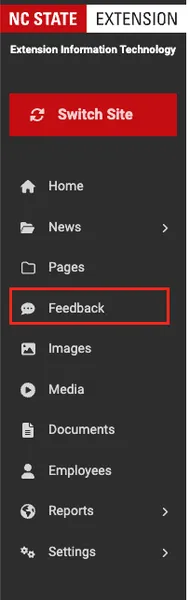
The feature is accessible from your dashboard's sidebar. Once you sign in, look for Feedback on the left-hand side of the screen.
The Features
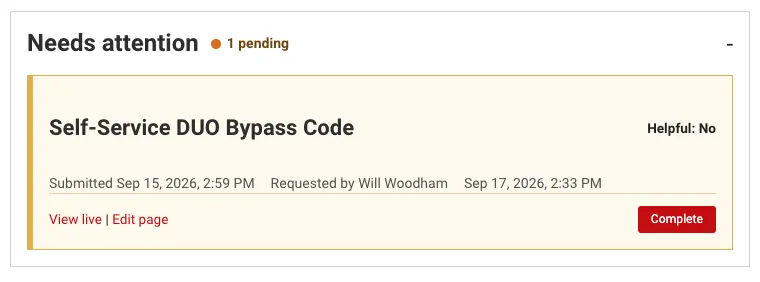
At the top of the feedback page, we have added a new "Needs Attention" section. This section is designed to highlight Feedback responses that members of the EIT team have specifically requested attention to.
Action on the feedback is not required, but please note these highlights.
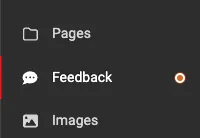
If there is a piece of feedback that needs immediate attention, you'll now be alerted in your sidebar and on the Feedback Page. If you have feedback that has been highlighted for attention, you will see an orange circle beside your feedback button.
The Needs Attention Highlight will show you some basic information on the feedback.
What you will see in the Highlight Box:
- Article Title
- User feedback (including whether they found the content helpful)
- Link to View Live Page
- Link to Edit Page
- Complete button (to clear the notification)
What Should I Do?
When you receive a notification for feedback, just follow these simple steps.
Review the feedback to determine whether action is needed. The request for attention (especially for positive feedback) can be a way to highlight praise.
If you believe attention is needed to resolve the feedback, you can click Edit Page to directly make the changes to the original page or article. After you make your changes and publish the page, return to the feedback page.
Clicking Complete will close the notification.
Learn More
Learn more about using the website with our Website Help Guide