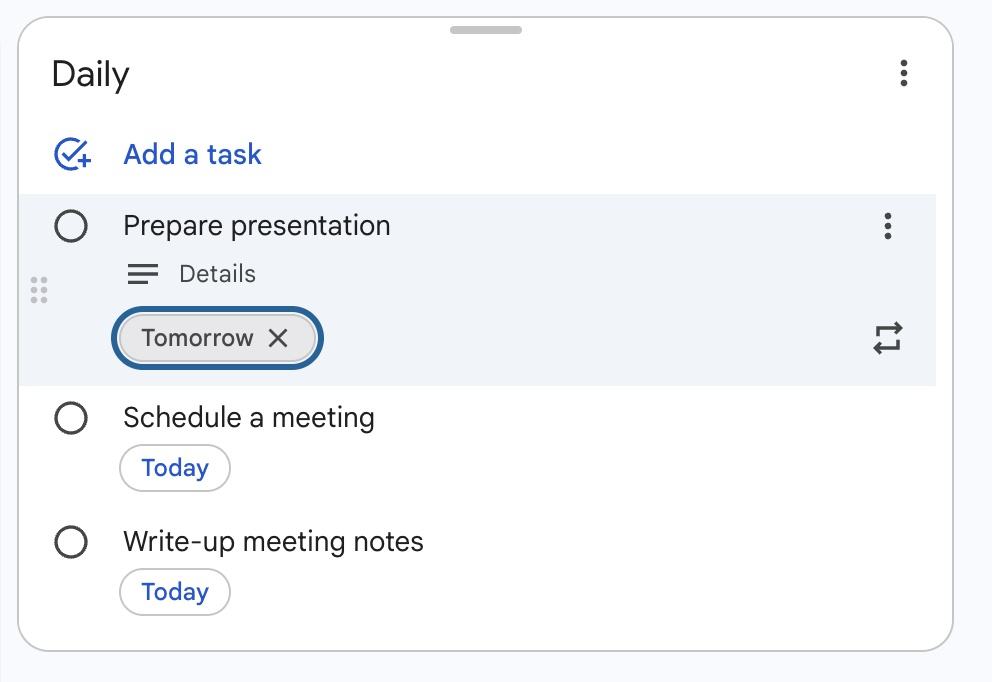
Having trouble balancing due dates and keeping track of everything on your to-do list?
Try using the Google Tasks tool, which is already built into your Google apps.
In Gmail, Calendar, Drive, Docs, Sheets, and Chat: Look for the little blue circle with a white checkmark on the right-hand side. Click it to open your task list.Adding and Organizing Tasks
Create a New Task
- Open the Tasks side panel or mobile app.
- Click "Add a task" or the button.
- Type a short title for your to-do item.
Add Crucial Details
Click on a task to expand its details:- Due Date/Time: Add a date, and optionally a time. This will add the task to your calendar. You can also set tasks to Repeat daily, weekly, monthly, or annually.
- If you don't complete a task by the due date, it will roll over on your calendar.
- Details: Use the description field to add anything else you might need to know, including links
- Subtasks: Break down big tasks into smaller steps