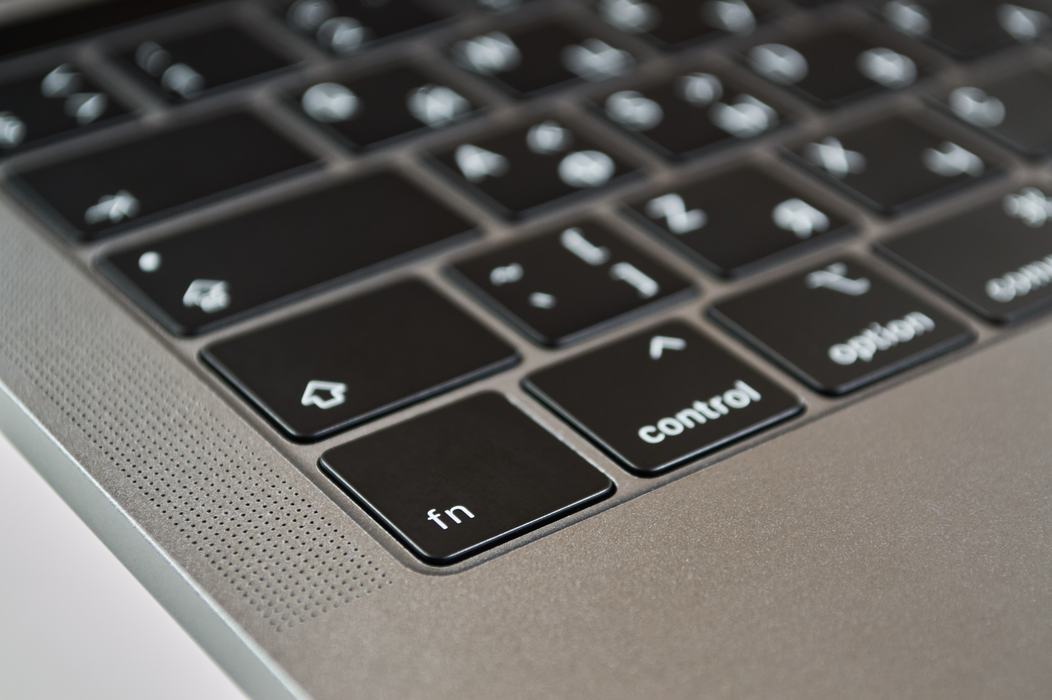
Using keyboard shortcuts on the Mac is a good way to take your productivity up a notch. Most Mac users are familiar with Command-C (copies to the Clipboard) and Command-V (pasts the content from the Clipboard). But there are many more keyboard shortcuts that when used in the right context can save time and make you more productive.
Some of these include: Command-P: Print the current document. This quickly opens the print dialogue instead of having to select File>Print. Command-A: Select all items. This would allow you to then copy all of that content (using another shortcut of Command-C) to then paste elsewhere using another shortcut (Command-V). Command-spacebar: Shows the Spotlight search field. This allows you to quickly look something up (an application, a file) on your Mac.Basics
With any application on the Mac, available keyboard shortcuts can be found by selecting an item in the application's menubar and looking to the right of any action underneath that item. For a longer list of common keyboard shortcuts, take a look at Apple's page Mac keyboard shortcuts.Advanced
Most keyboard shortcuts work across all applications on your Mac. Some keyboard shortcuts are specific to one application. For instance, in the Gmail web application (gmail.com), an email can be composed by selecting the 'c' key. If you send a lot emails, this keyboard shortcut is surprisingly handy. The Gmail web application has a long list of actions that can be accomplished with either a default or custom keyboard shortcut in Settings > Advanced > Keyboard Shortcuts.To dive in further and start creating you own keyboard shortcuts, take a look at Apple's page Create keyboard shortcuts for apps on Mac.