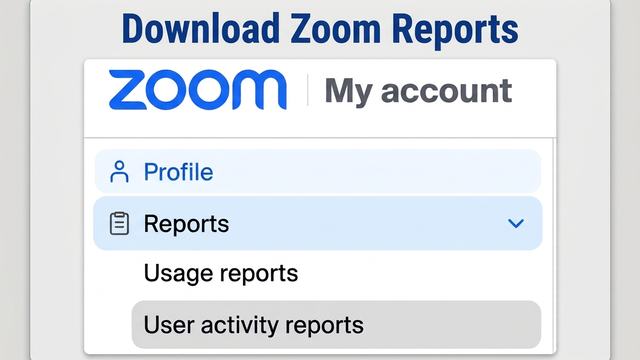
To export a CSV of your meeting or webinar registration reports in Zoom, you need to access the Reports menu in your profile settings.
When you log into ncsu.zoom.us, follow these steps to quickly navigate to the reports page and download your registration data.
Navigating to Registration Reports
- Sign In to NC State Zoom Go to ncsu.zoom.us and log in with your Unity ID credentials.
- Open Profile Settings Click your profile picture or initials icon in the upper-right corner of the screen, then select Profile from the dropdown menu.
- Navigate to Reports In the left-hand navigation menu, click Reports.
- Export Registration CSV Under the Usage Reports section, click Meeting and webinar registrations to select your event and download the registration CSV.
Additional Resources
- For details on Zoom's web interface layout, visit the Zoom Support Documentation.
- For further assistance with NC State video conferencing tools, return to EIT Video Conferencing with Zoom.