Our Extension website platform, built in Wagtail, includes some features to help ensure your content meets digital accessibility standards.
Wagtail Accessibility Checker
When you finish creating a new webpage or news post, use the "checks" tool to ensure you don't have any accessibility errors that need correcting. Look for the glasses icon in the top right corner to open the accessibility checker. You can also access the checker from the front-end of the website when logged in. Just click on the Wagtail bird icon and look for the Checks option. A green zero indicates that you have no accessibility errors.
If there are errors, you can click the icon to locate them on the page.
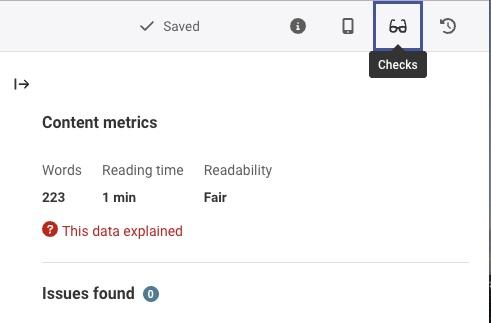
Issues and alerts will be listed under the glasses icon in the top right corner of your page or post.
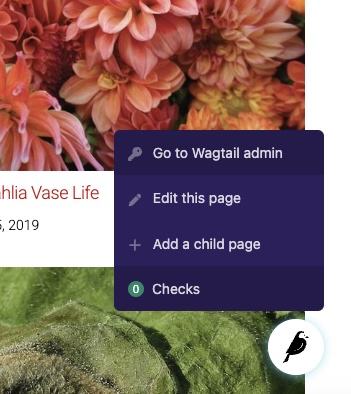
To see accessibility alerts on the front-end, click on the bird icon on the page you'd like to examine.
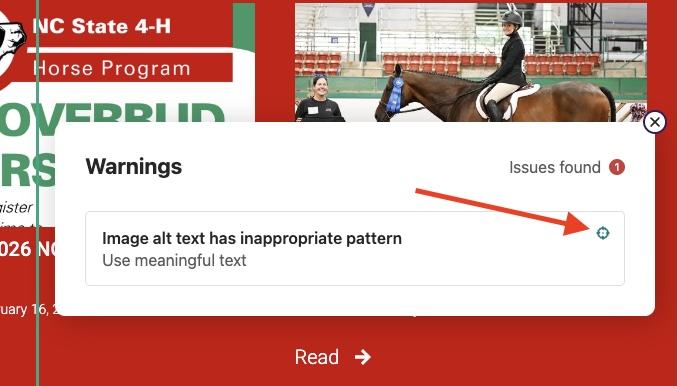
Click on the icon to locate the error or alert on the page.
Uploading Documents
Its important that any documents you upload to the website have been evaluated for digital accessibility. The website platform cannot scan the documents individually for compliance, but you will be asked to check a box to certify that any document you upload has been made digitally accessible. You can use Adobe Acrobat, FoxIt, or Grackle to help create or evaluate your documents. The easiest way to ensure digital accessibility is to post directly to your website, rather than adding a Word Document or a PDF. See our PDF Decision Guide and Resources page for more information about accessible PDFs.
Video and Audio
- All video files should include captions. We encourage you to upload your video content to YouTube and then either embed the YouTube video or link to the video. This is because YouTube has built-in features to help you add and edit captions. Please review and edit any auto-generated captions to ensure accuracy.
- Any audio files uploaded to your website must include a transcript for accessibility. If you link to an audio file or embed an audio file from another source, you must also include a text transcript.
Images
- Images uploaded to your Extension website must include alt-text. It is up to you to ensure the alt-text is an effective description of the image. Learn more about alternative text from this WebAim Guide.
- Text within images is not accessible. If you upload a Canva flyer image or other image with text to your web page or post, you must include that text in plain text on the page as well. This not only ensures the text is readable by assistive technology like screen readers, but also allows users to highlight, copy/paste text from your post, or click directly on links. QR codes are also not recommended for website posts, as it is more efficient for users to click directly on a link than to switch devices to take a picture with their phone. For more information about using Canva designs appropriately, see Using Canva With Accessibility in Mind