If you get a new phone and had the DUO Mobile app on your old phone, you will need to follow these instructions in order to get those apps working on the new phone:
- If you did not have the DUO mobile app on your old phone and were just receiving the 2-factor verification codes as a text, then you do not need to follow these directions.
- If your phone number did not change for your new phone, you do not need to do anything in order for you to receive verification codes as a text. If your phone number did change with your new phone, please contact the help desk for further instructions on setting it up for 2-factor authentication.
- On your computer, open your browser and go to: https://docs.shib.ncsu.edu/duoenroll/
- Sign in with your unity id and password.
- Leave the Passcode field empty and just select Enter a Passcode.
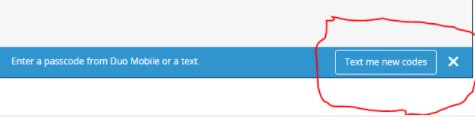
- At the bottom of the page you should see an option “Text me new codes” in a blue box:
- The code will be texted to the new phone if it has the same phone number as the old phone.
- Enter the code in the Login field to get to the My Settings and Device page.
- Select Log in.
- Select Device Options next to the old phone information.
- Select Reactivate DUO Mobile.
- You will be prompted with a QR code to scan.
- Open the DUO Mobile app on the new phone and follow prompts to add a new account until you bring up the QR scanner to scan the QR code on your computer.